Work through the checks in order, from the simplest to the rarest. Checks 1 to 3 show whether the post has audio at all and where the problem sits. The rest narrow it down.
011. Check the audio status first
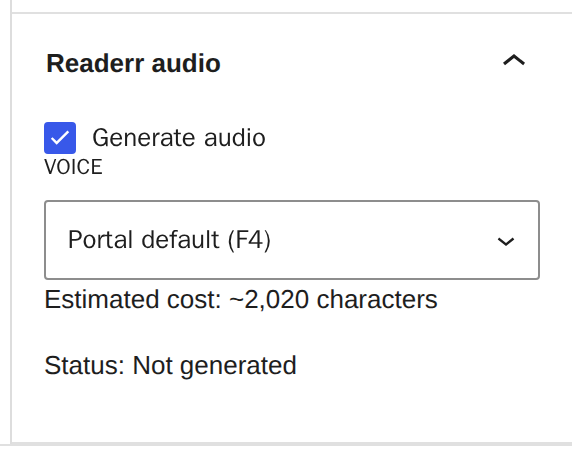
The audio status tells you whether the post has audio. Open the post in the block editor and read Status in the Readerr audio panel. Anything other than Generated explains the missing player.
| Status | What it means | What to do |
|---|---|---|
| Not generated | The post was never sent. | Check that it is a published post, that Generate audio is ticked, that the text reaches Minimum length (1,500 characters by default) and that a key is saved in Settings, then Readerr. A scheduled post gets audio before it publishes only with Scheduled posts ticked there. |
| Queued | The post is on its way. | Wait a few minutes. If it stays queued, go to check 2. |
| Held for review | A person checks the file before it goes live. | We check it and release it, or tell you what is wrong. |
| Character limit reached - no audio | New audio was refused. | The pool is used up, or the trial or plan has ended. Go to check 6. |
| Error | Readerr could not make the audio. | Check the key in Settings, then Readerr, and save the post again. |
Pages are never read, only posts. For the full list, see what the audio status means.
022. Check whether the status stays Queued
If the status stays Queued, WordPress is probably not running its scheduled tasks. Readerr hands each post to WordPress's task queue, and the queue needs your site to be able to send a request to itself. Open Tools, then Site Health, and look for the test Your site can perform loopback requests.

When the test fails, a waiting post is handled only on a later visit to your site, so it can wait a long time. Ask your host or the person who runs the site to fix it. If the test passes and the post is still Queued after several hours, write to us.
While a post waits, readers see a dashed "Audio version coming soon" bar for up to an hour. After that they see nothing.

033. Look for the player in the page source
To tell a missing player from a hidden one, search the page source. Open the post on your site, right-click, choose View page source and search for readerr-player. A post with audio contains something like this:
<readerr-player data-v="2" data-article="..." data-path="...">
  <div class="readerr-stage">
    <audio controls preload="none" src="https://cdn.readerr.app/..."></audio>
  </div>
  <p class="readerr-label">AI-generated audio (Readerr) ...</p>
</readerr-player>
If the tag is there, the plugin did its part. Something stops the script or hides the player, so go to check 7. If the tag is missing, the plugin did not add it, so work through checks 4, 5, 6 and 8. Page source shows the HTML your server or cache sends, so it also shows whether a cache serves an old copy.
044. Check that the player is not hidden on purpose
The player disappears on purpose in two places. In the post's Readerr audio panel, unticking Generate audio hides the player at once. The audio file stays, and ticking the box again brings the same player back without making new audio. The second place is Player position in Settings, then Readerr. With Only where the [readerr_player] shortcode is, the player appears only where you put the Readerr player block or the shortcode.
![The Player position row in the Readerr settings with the option Only where the [readerr_player] shortcode is highlighted, and the note that a post with the shortcode shows the player there instead, once](/help/player-not-showing/02-wp-position-manual.png)
Choose another position, or place the block as described in how to place the player or turn it off for one post.
055. Clear the page cache
A cached copy of the page may have been saved before the audio was ready. Readerr clears the cache by itself for WP Rocket, LiteSpeed Cache, W3 Total Cache, WP Super Cache and SiteGround Optimizer. It does so when the audio file appears or changes, when you switch Generate audio and when you save the plugin settings.
Other layers are not cleared. That includes Cloudflare APO, a cache on your server and caching plugins that are not on the list. Clear them yourself, then reload the post in a private window. Developers can connect another cache to the actions readerr_purge_post and readerr_purge_all.
If you cleared every cache and the status is Generated but the player is still missing in a private window, continue with check 6.
066. Check that your account still has access
The plugin hides every player when the account has no access. This happens a week after the trial or the plan ended. It also happens when the key saved in the plugin stops working, for example after you made a new key in the panel, and when the plugin has had no successful check for 7 days. After a trial or plan has ended, your customer panel shows a red banner.

Choose a plan, or paste the current key into Settings, then Readerr, and save. A key is shown only once, so if you lost it, make a new one on the site page in the panel and paste it straight away (see how to install the plugin and connect your site). Players return within a day, or at once when you open that settings screen. See what happens when the trial or plan ends.
077. Check that the script is not blocked
The player script loads from cdn.readerr.app/player.js as a deferred module, and only on a single post that has a player. Readerr marks the tag so Cloudflare Rocket Loader and optimisers leave it alone, but some still rewrite it. Exclude cdn.readerr.app/player.js from Rocket Loader and from script minify, combine and delay settings.
If your site sends a Content-Security-Policy header, it usually must allow cdn.readerr.app (the player script and the audio) and beacon.readerr.app (listening statistics sent after the first play).
Without the script, visitors still get a plain audio control and the AI label, because both are in the page itself. If you see only that plain control, the script is not running.
088. Check that the theme shows the post normally
Readerr adds the player to a post's content on the page of a single post. A theme or page builder that displays the content somewhere else, such as in a custom template, may not get the player. A block or shortcode placed by hand has the same limit. The player never appears on archive pages, on the home page or on pages.
Switch to a default WordPress theme on a staging copy of your site. If the player shows there, the problem is in your theme or builder. Tell us which one when you write to us.
09If nothing helps
Send us the address of the post, the Status you see and whether readerr-player is in the page source. Use the contact form.