01What you need
- A Readerr account. Start a free trial first if you do not have one.
- WordPress 6.9 or newer, running PHP 7.4 or newer. That is what the plugin requires.
- Admin access to your WordPress site, so you can install plugins and open the Settings menu.
- The block editor if you want the per-post audio panel. The classic editor works with the site-wide settings only.
02Steps to connect your site
Add your site in the customer panel
In the panel, open Sites and click Add site, or use the Add site button on the Overview page. Type your domain in the Domain field. Write just the address, like harbourledger.com, with no https:// and no www. Click Add site.
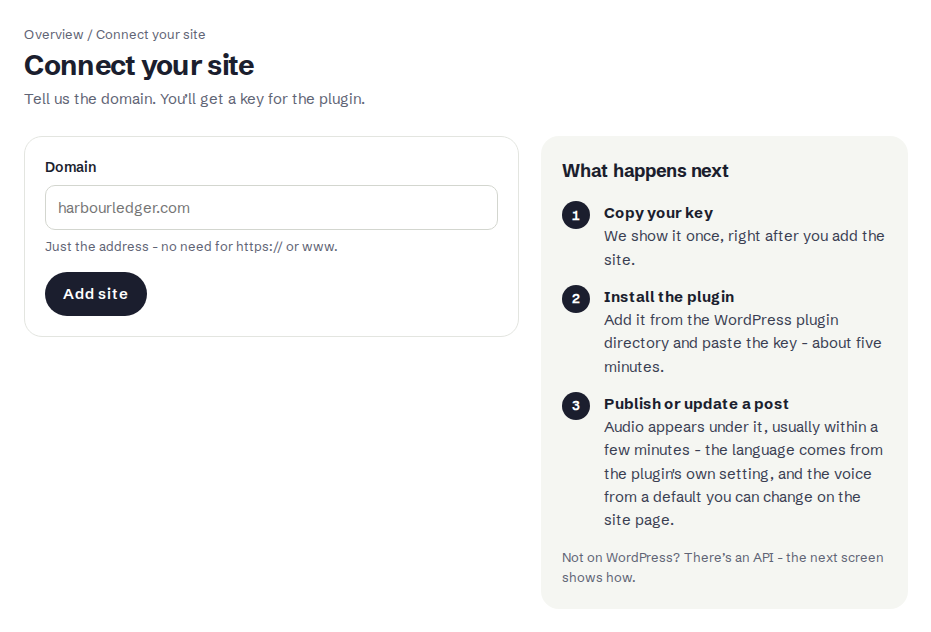
One domain per site. Your plan sets how many sites you can add.Full size Copy the key
The next screen shows API key for your domain, marked Shown once. Click Copy key and keep it ready. The same screen has a link to the plugin page on WordPress.org.
We do not show the key again. If you lose it, you make a new one on the site page, and the old one stops working (see "Replace a lost key" below).
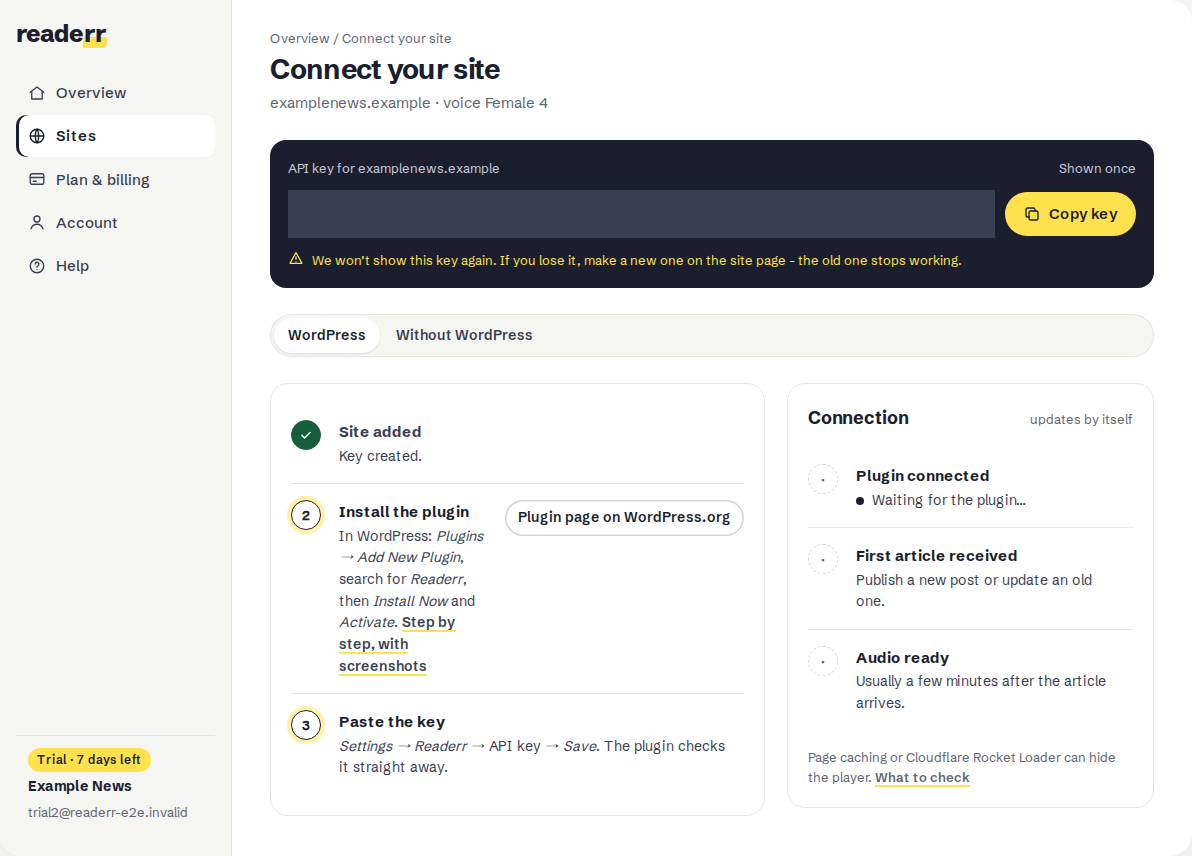
The key is covered here. On your screen it is readable, once.Full size Install and activate the plugin in WordPress
The plugin is in the WordPress plugin directory, so you install it from inside WordPress. Go to Plugins and Add New Plugin, then type
Readerrinto the search box. Find the card named Readerr and click Install Now.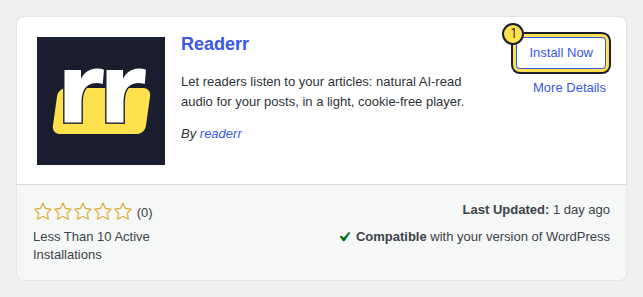
Search for Readerr, then click Install Now.Full size When the installation is done, the same button turns into Activate. Click it.
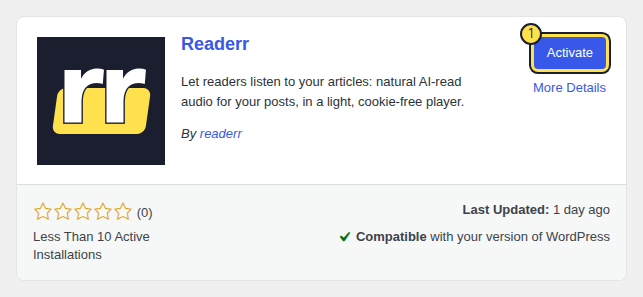
The plugin does nothing until you add the key.Full size Paste the key and check the language
Go to Settings and Readerr. Paste the key into API key. Check Article language now, before your first post (see the next section). Save the settings with Save Changes.
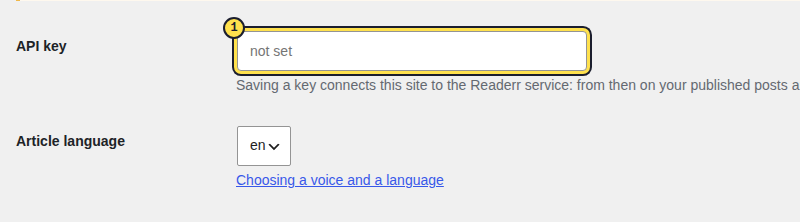
Paste the key into the highlighted field.Full size The page reloads and the plugin checks the key straight away. The key field is now empty, which is normal: it shows a placeholder saying a key is set. A usage line appears above the form.

The usage line means the key works. Leave the key field empty to keep it.Full size Watch the Connection box
Go back to the panel. The Connection box, on this screen and on the site page, updates by itself every few seconds. It ticks off three things: the plugin connected, the first article received, and audio on the site. When the plugin has checked in, the first tick turns green.
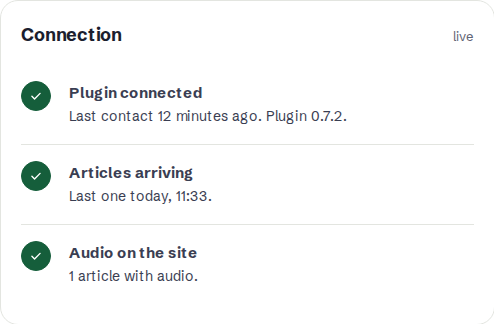
The Connection box on the site page, all three green: the plugin connected, an article arrived and its audio is on your site.Full size Publish or update a post
Publish a new post, or open an existing one and update it. The post needs at least 1,500 characters by default, and Generate audio is on by default. Audio usually appears a few minutes later.
03Set the language before your first post
Article language is set in the plugin, not in the panel, and it defaults to pl (Polish). The service learns your site's language from the first article it receives. If your site is in English and the setting still says pl, the first posts are prepared as Polish and the player label is Polish.
Choose en, de or fr before you publish anything. How to choose a voice and language explains what changes later if you switch.
04Check that WordPress can run background jobs
Readerr sends posts from a background job, and WordPress runs it by calling your own site. If that call fails, posts wait in the queue until a visitor opens your site. In WordPress, open Tools and Site Health and look for the test "Your site can perform loopback requests". It should pass. If it fails, new posts can wait a long time for their audio.
05Updates
Readerr updates through WordPress like any plugin from the directory. When a new version is out, WordPress shows it under Dashboard and Updates, and on the Plugins page, where you can also switch on automatic updates for it. Your key and settings stay as they are.
06If you cannot install from the directory
Some hosts block plugin installs from inside WordPress. Then download the plugin yourself. Open the Readerr plugin page on WordPress.org, click Download, and save the .zip file. In WordPress, go to Plugins, Add New Plugin, Upload Plugin, choose the file, click Install Now and then Activate Plugin. The key goes in the same place as before: Settings, Readerr, API key. WordPress offers updates for it like for any plugin from the directory. If your host blocks plugin changes from inside WordPress, download the new version from the same page when one comes out.
07Replace a lost key
Open Sites, choose the site and click Make a new key. For this, Readerr asks you to confirm by email first. The new key works at once and the old one stops, so paste the new one into Settings and Readerr straight away. Until you save it, the players on your site are hidden and new posts get no audio.
08If something goes wrong
The panel says "Your plan has no free site slot". Your plan is full. Choose a bigger plan to add another site. The trial covers one site.
The panel says "This domain has already had a trial". A domain gets one trial. Choose a plan to continue with it.
The status reads "Error". The key is wrong or was replaced. Paste the key again, then save the post again. What the audio status means covers every status.
Readerr does not show up in the search. Type the exact word Readerr. If the card is still missing, or WordPress will not install it and says it needs a newer version, update WordPress first (Readerr needs 6.9 or newer), or use the download in the section above.
The audio is ready but the player does not show. Go to the player doesn't show on my site.