01Pick the article language
The language is one setting for the whole site. In WordPress, go to Settings and Readerr, and set Article language to pl, de, fr or en. Polish, German, French and English are the only languages Readerr reads. The default is pl.

The language does two things. It tells the service how to prepare and read your text, and it sets the language of the label under the player. Each label starts like this and ends with a short note that the audio may contain errors:
en: "AI-generated audio (Readerr)"pl: "Audio generowane przez AI (Readerr)"de: "KI-generiertes Audio (Readerr)"fr: "Audio généré par IA (Readerr)"
The label is part of the player and stays visible on every site.
02What happens if you change the language later
Set the language before your first post, ideally while you install the plugin. If you change it later, audio that already exists is not made again, so the audio stays in the old language. The label under every existing player switches to the new language at once, so the label and the audio can disagree until you make new audio.
There is one language per site and no per-post language. A site that publishes posts in several languages cannot get each in its own language today.
03Set the default voice for your site
Readerr has ten voices: five female (Female 1 to Female 5) and five male (Male 1 to Male 5). In WordPress they appear as F1 to F5 and M1 to M5. A new site starts on Female 4 (F4).
You set the default voice in the customer panel, not in WordPress. Open Sites, choose your site and find the Default voice list in the Settings box. Pick a voice, click Listen to hear a sample, and click Save when you like it.
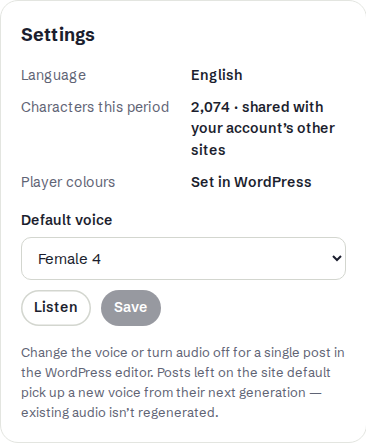
Before your first article arrives, the sample plays in English, because the site's language is not known yet. After that it plays in your site's language.
Changing the default does not touch audio that exists. Posts left on the site default pick up the new voice the next time they get audio.
04See the default voice in WordPress
Settings and Readerr show the same voice in Default voice, with a Listen button. It is read-only there. If you see "Save your API key to see the voice.", save your key first. If you see "The service did not answer. Reload the page in a moment.", reload the page.

05Choose a different voice for one post
Open the post in the block editor, and in the settings sidebar find the Readerr audio panel. Open the Voice list. The first entry, Portal default, shows the current default in brackets, for example "Portal default (F4)". Below it are F1 (female) to M5 (male). Pick one and save the post.
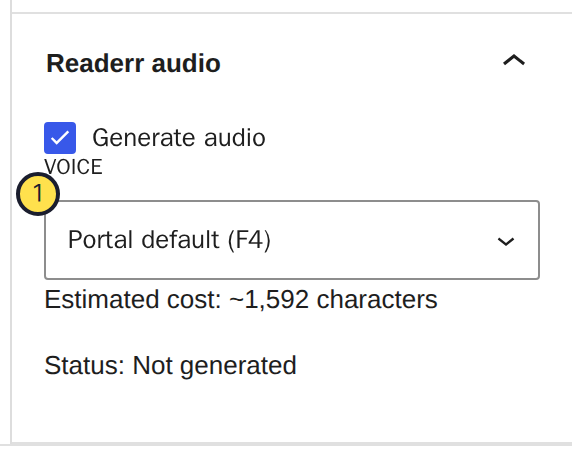
A post left on Portal default uses the site default at the moment its audio is made. It does not keep a frozen copy of the voice.
Changing the voice of a post that already has audio always makes new audio, and it uses that post's characters again, even when Keep current audio is ticked. See will editing a published post make new audio and what counts as a character.
06If something goes wrong
The Voice list only shows Portal default. The list comes from the service, and WordPress only waits a few seconds for it. If the service does not answer, only Portal default is offered. Reload the editor in a moment.
There is no Voice list at all. The panel exists only in the block editor, and only for posts. In the classic editor, the site default applies.
The new default voice did not appear in the editor. After you save a new default in the panel, the editor can take up to an hour to show it. The Settings and Readerr screen shows it at once.