01What happens when you update a post
When you update a post that already has audio, Readerr keeps the current audio. This is the default since plugin 0.5.0. The player keeps playing the old audio, and the Readerr audio panel in the editor shows a blue note: "Audio is from an earlier version of this post."
That note is a reminder, not an error. It stays until new audio exists, even if the change was only a typo fix. A typo fix, a changed paragraph and a new title all count as a change to the post, so the note appears for each of them. Nothing is sent to make new audio and no characters are spent.
Saving with no change at all sends nothing either. The one exception is a post whose status is Held for review: saving it sends it again, even without changes (see what the audio status means).
02What counts as a change
Readerr compares three things between saves: the title, the text and the post's voice. If one of them differs from the version the audio was made from, the post counts as changed.
- Counts as a change: any edit to the text, a changed title, a changed voice for this post, and adding the
[readerr_player]shortcode as text. - Does not count: tags, categories, the featured image, theme settings, moving the player block, and the site language in the plugin settings.
The title is not read aloud, but it still counts. With the site set to make new audio on every update, a title-only edit makes full new audio that sounds the same and uses the full character count.
03Make new audio for one update
To get new audio for a single save, change the text first and then untick Keep current audio. The box appears only when the post has audio and the text differs from what the audio was made from, so you cannot untick it on an unchanged post.
Edit the post and open the Readerr audio panel
Change the text, then find Readerr audio in the editor sidebar. When the text no longer matches the audio, a blue note says "Audio is from an earlier version of this post." and the box Keep current audio appears under it.
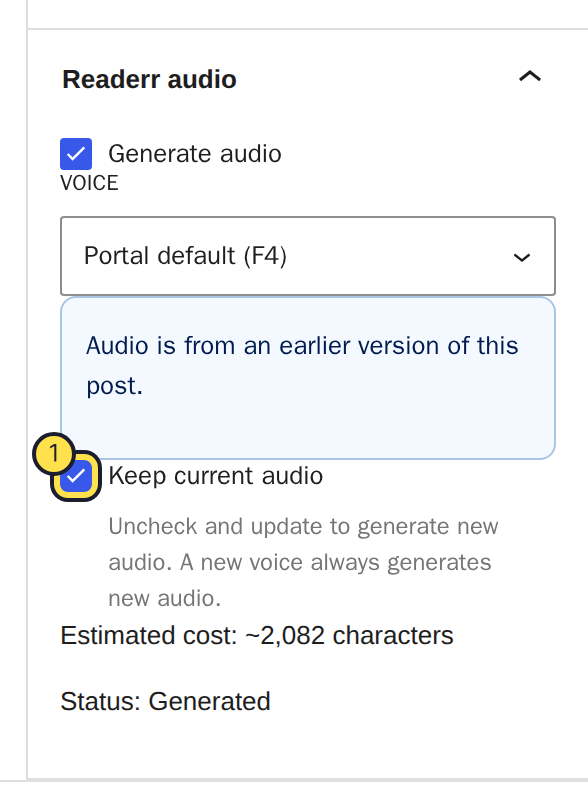
The box is ticked by default. Untick it to make new audio on the next save.Full size Untick Keep current audio and save
Untick Keep current audio, then press Save. Older WordPress versions call the button Update. The status changes to Queued. The old audio keeps playing until the new file is ready, usually within a few minutes.
The choice counts for that one save only. Next time the box is ticked again.
Do not save again while the status is Queued. A second save sends the text a second time, and you pay for it a second time. The box does not appear while new audio is on its way.
04Make every update create new audio
To make new audio on every update, set it for the whole site. Open Settings, then Readerr, and under Published posts choose Generate new audio when a published post is updated. The default is Keep current audio when a published post is updated.

Editors can still choose otherwise for a single update with the Keep current audio box. Use this setting for a site where published posts change often and the audio must always match the text. Keep the default if you mostly fix typos. Each time new audio is made, the post's full characters count again (see characters and limits).
05A new voice always makes new audio
Changing the voice of a post always makes new audio when you save, whatever the setting says. Change it in the Voice list of the Readerr audio panel. Choosing a different voice for the whole site does not touch existing audio. Posts left on Portal default pick up the new voice the next time they are recorded. The voice choices are in how to choose a voice and language.
06Trashing or unpublishing a post
Moving a post to the trash or back to draft deletes its audio from the service and the CDN about 60 seconds later. If you publish the post again, Readerr starts from scratch and the full characters count again. So do not unpublish a post only to edit it. With the default setting, editing it in place keeps the audio.
07If you want new audio and cannot get it
There is no Regenerate button. New audio needs a change to the text or the voice. If you want new audio for text that is right as it is, change the voice and save, or make a small edit you wanted anyway, such as a typo fix, then untick Keep current audio and save. Both cost the full characters again.
If the box Keep current audio is missing, the post has no finished audio yet, the text still matches the audio, or new audio is already on its way. If new audio was refused at your limit, see what happens at the limit.