01Why older posts have no audio
The plugin does not go through your archive when you install it. It sends a post for audio only when the post is saved. A post you published a year ago has no audio until you save it once with the plugin connected.
Each post you send uses its own characters. Our pricing counts an average article as 5,000 characters, so 20 posts of that length use about 100,000 characters, the whole monthly pool of the Start plan. Check your pool before you send many posts (see characters and limits).
02What a post needs to get audio
A post is sent for audio when it meets all of these conditions:
- It is a published post. Pages and other content types are not supported.
- Generate audio is on for it. The site default is under New posts in Settings, then Readerr. It is on unless you switched it off.
- The text is at least as long as Minimum length, 1,500 characters by default. Shorter posts are skipped and cost nothing.
- Your key is saved and you have characters left.

03Add audio to one older post
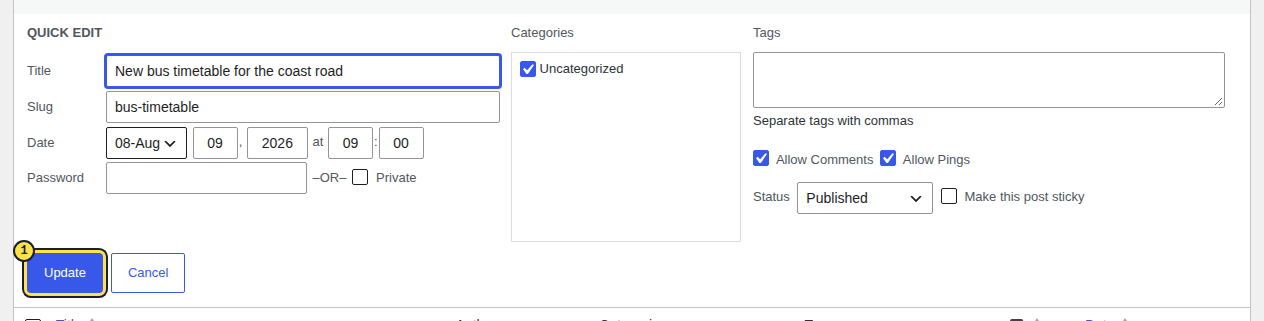
To add audio to one older post, open it and save it. The simplest way that works on every post is Quick Edit in the post list. In the editor, WordPress 7.1 keeps the Save button grey until you change something, so make a small edit first.
Check what the post will cost
Open the post in the editor. In the Readerr audio panel, Estimated cost shows how many characters the post will use, and Status shows Not generated. For your pool, open Settings, then Readerr: the line above the form shows how many characters you have used.
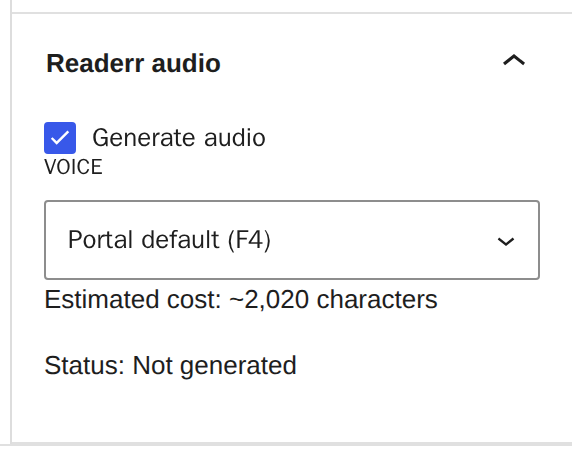
An older post that was never sent shows Not generated. The estimate counts only the text that is read aloud.Full size Save the post
Make a small change, such as fixing a comma, and press Save. Older WordPress versions call the button Update. Or skip the editor: in Posts, hover the post, choose Quick Edit, change nothing and press Update. Quick Edit works on a post you did not change.

On a post without changes the Save button is grey. After an edit it turns blue.Full size Wait for the audio
The status changes to Queued, and Generated follows, usually within a few minutes. Once Readerr has accepted the post, readers see a dashed bar saying "Audio version coming soon" until the audio is ready. Then the player replaces it.
04Add audio to several older posts at once
To add audio to several posts at once, use Bulk Edit or Quick Edit in Posts. There is no button for the whole archive. Select the posts, choose Edit in Bulk actions, press Apply, leave every field on No Change and press Update. Readerr sends each selected post separately, and each one uses its own characters.
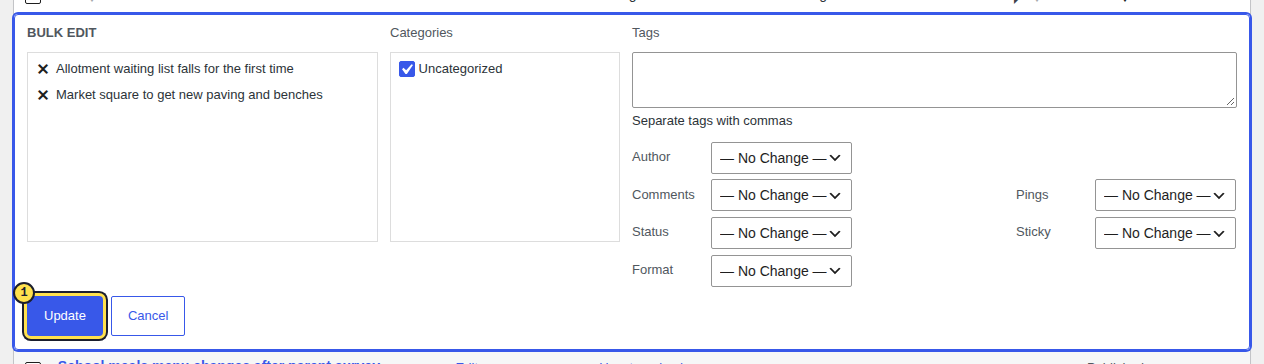
Bulk Edit acts on the posts you ticked on the current page of the list, so a large archive takes several rounds. A post that already has audio and has not changed is not sent again. Posts below the minimum length are skipped.
05If your characters ran out
If your characters run out, posts you send after that are refused, and nothing is retried later. After a top-up, a new month or a bigger plan, send those posts again. Your customer panel shows how many are waiting and tells you to open each post and press Save (Update in older WordPress).

On WordPress 7.1 the editor button says Save, not Update, and it stays grey on a post you did not change. Use Quick Edit for those posts. The panel counts the posts but does not list them, so keep your own list of the ones you were sending.
06If a post gets no audio
If Status stays at Not generated, check the conditions above: the post is published, Generate audio is ticked, and the text reaches the Minimum length. The Readerr audio panel exists only in the block editor, so posts built in the classic editor have no panel. Quick Edit and Bulk Edit still work for them. If the status stays on Queued for a long time, see the player doesn't show on my site.