01Choose where the player goes by default
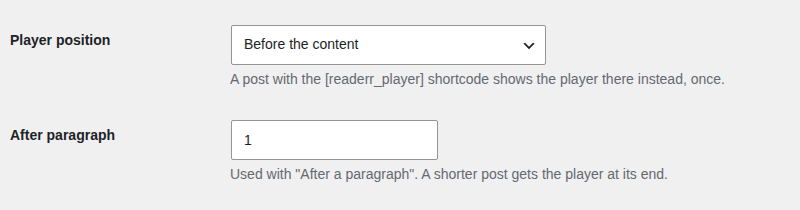
By default the player sits above the post text. To change that for every post, go to Settings and Readerr in WordPress and open Player position. It has four options:
- Before the content: the player sits above the text. This is the default.
- After a paragraph: the player sits after the paragraph number you set in After paragraph. A post shorter than that gets the player at its end.
- After the content: the player sits at the end of the post.
- Only where the [readerr_player] shortcode is: the player shows only where you place the block or the shortcode yourself.
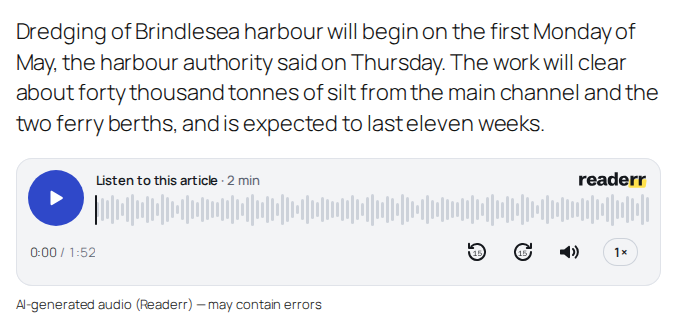
Save the settings and open a post. This is what a reader sees with the player placed after the first paragraph: the card with the play button, the length, the Readerr logo, and the AI label underneath.
02Place the player yourself with the block
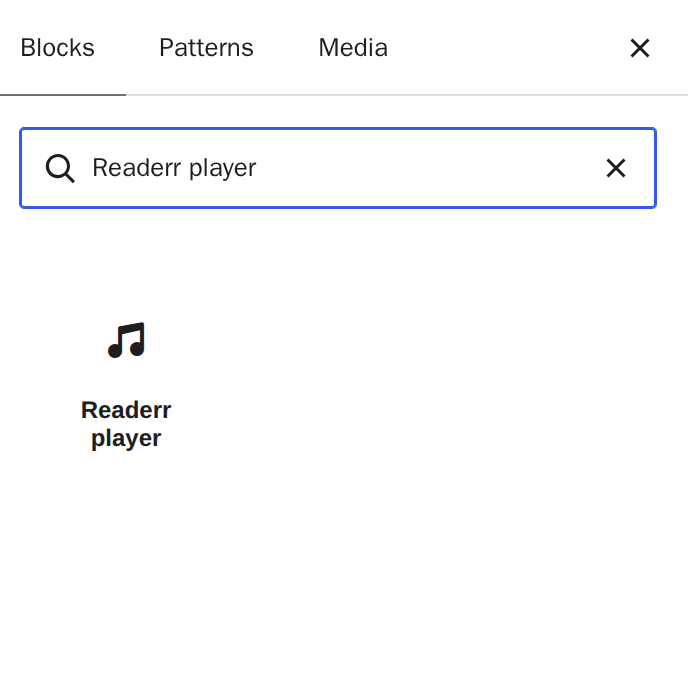
Use the block when you want the player at an exact spot, such as under a lead image. In the block editor, click the + button to open the inserter, type "Readerr player" in the search, and click the Readerr player block. Put it where you want the player.
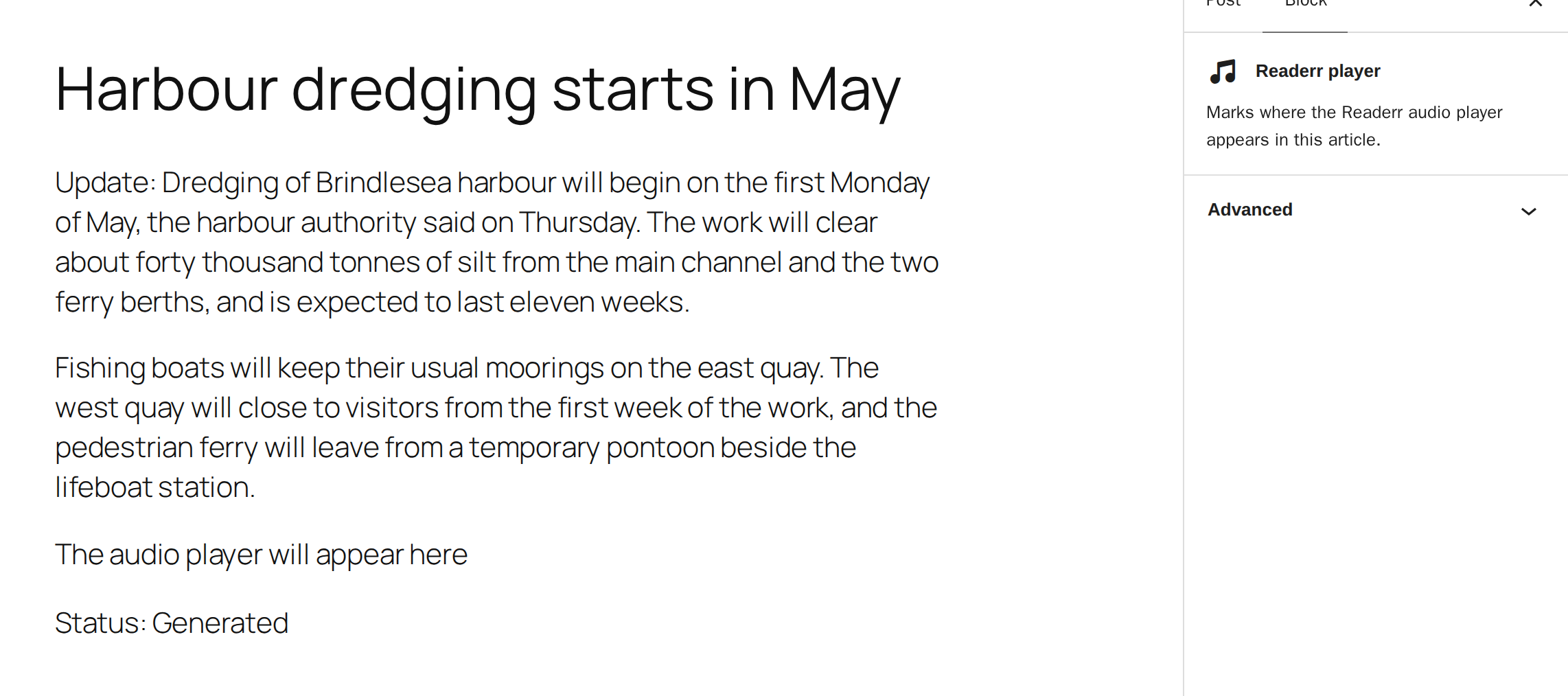
In the editor, the block shows "The audio player will appear here" and the audio status. On the live post it becomes the real player.
You can add only one block per post. A block or shortcode always wins over the position setting. Inserting, moving or deleting the block never starts new audio. The block works on single posts, in the main post content. It does not work in post lists, excerpts or related-post blocks.
03Place the player with the shortcode
In the classic editor, type [readerr_player] where you want the player. If a post has the shortcode or the block, the first one gets the player and any others disappear, so a post never has two players.
Prefer the block over the shortcode. Typing the shortcode changes the text of the post, and Readerr treats that as an edit. With the default setting, the post keeps its audio and the editor shows "Audio is from an earlier version of this post." If your setting is to generate new audio on every update, adding the shortcode makes new audio and uses the post's characters again. The block does not do this.
04Turn the player off for one post
In the block editor, open the post, find the Readerr audio panel in the sidebar and untick Generate audio. Then save the post. The player disappears from that post, even where you put the shortcode. Readerr also asks the cache plugins it supports to refresh that page.
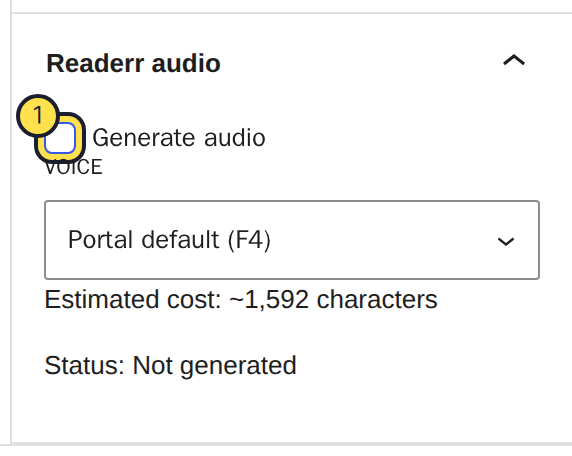
The audio file is not deleted and no characters come back. If you tick Generate audio again and save, the same player returns without new audio. On a new post with the box unticked, nothing is sent and the status stays "Not generated" (what each status means).
To turn audio off for every new post, untick Generate audio by default in Settings, Readerr, New posts.
05Where the player never appears
The player appears only on single posts. It does not appear on pages, on other content types, on archive pages or on the home page. It also needs the main post content to be printed the usual way. A theme or page builder that prints content some other way may not show it. If the player is missing where it should be, see the player doesn't show on my site.
The per-post switch lives in the block editor only. In the classic editor, use the site-wide settings and the shortcode.